

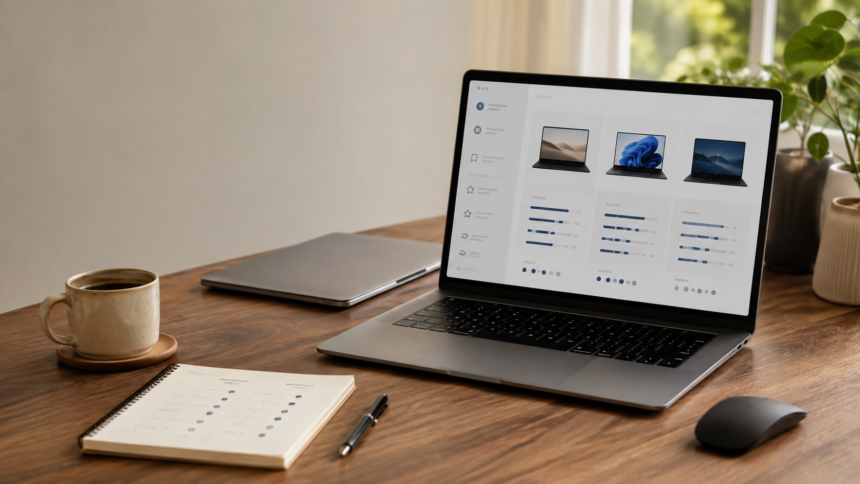
Buying a laptop should be straightforward. In practice, shoppers face long specification lists, confusing processor names, similar-looking models and prices that do not always reflect real-world quality.
TheLaptopAdviser Guides aim to make that decision easier. The site brings together buying advice, product comparisons, use-case recommendations and maintenance information. Instead of treating one specification as the answer to everything, its guides encourage readers to consider how a laptop will actually be used.
That approach matters. A powerful gaming laptop may be a poor choice for someone who travels every week, while an inexpensive Chromebook might be ideal for browser-based schoolwork but unsuitable for specialised Windows software.
A useful laptop guide therefore does more than name popular products. It helps you understand the compromises behind each choice.
What the Guides Cover
According to its overview, TheLaptopAdviser Guides cover buying advice, laptop comparisons, recommendations for different use cases and maintenance tips. The site also says its reviews consider areas such as performance, build quality, battery life and user experience.
These categories address different stages of ownership. A buying guide helps create a shortlist, while a comparison can reveal important differences between two similar models. Maintenance guidance becomes more valuable after the purchase, particularly when a laptop is expected to remain in service for several years.
The key is to treat any buying guide as a decision tool rather than a shopping order. Recommendations are most useful when they explain who a product suits, where it falls short and whether a cheaper configuration can deliver the same practical result.
Start with Your Work
Before comparing processors, write down the three most demanding tasks the laptop must handle. This simple step prevents attractive but irrelevant features from controlling the purchase.
Someone who mainly writes documents, attends video calls and works in a browser will have different priorities from a video editor or engineering student. General office users benefit from a comfortable keyboard, dependable battery life and enough memory for multitasking. Creators may need a colour-accurate display, fast storage and stronger graphics. Gamers must consider GPU performance, cooling and screen refresh rate.
It also helps to identify where the laptop will be used. Weight and battery life matter more on a daily commute than on a permanent desk. A larger screen may improve productivity at home, but it also increases the size of the bag and power adapter you have to carry.
The right laptop is not necessarily the fastest one. It is the model that handles your normal workload without making you pay for performance you rarely use.
Set a Full Budget
A realistic budget should include more than the advertised laptop price. Depending on the model, you may also need a protective case, USB-C hub, external monitor, software subscription, extended warranty or additional storage.
Create a comfortable spending limit and a firm maximum. The gap between them gives you room to pay for an upgrade that will genuinely improve everyday use.
Memory, storage and display quality usually deserve attention before cosmetic extras. A premium finish is pleasant, but it will not solve slow multitasking or insufficient storage. Likewise, paying for a high-end processor while accepting too little RAM can produce an unbalanced system.
Seasonal discounts can be useful, but compare the exact model number before buying. Retailers sometimes sell several configurations under nearly identical product names.
Choose the System
Windows, macOS and ChromeOS each suit different kinds of work. The best operating system is normally the one that supports your essential applications, accessories and existing workflow.
Windows offers broad software and hardware compatibility. When considering an older or refurbished Windows computer, confirm that it officially supports the current operating system. Microsoft lists a compatible processor, TPM 2.0, Secure Boot capability and other requirements for Windows 11. Its published minimum is only 4GB of RAM, but that is an eligibility threshold—not an ideal target for comfortable daily use. Check the full Windows 11 requirements before purchasing older hardware.
macOS can be a natural fit for people already using Apple devices or software developed specifically for the Mac. However, buyers should confirm that every essential application, peripheral and workplace system supports the chosen Mac.
ChromeOS works particularly well for browser-based tasks, cloud documents and lightweight everyday use. If you are buying a Chromebook, check its Automatic Update Expiration date rather than relying only on its physical condition. Google says ChromeOS platforms receive ten years of automatic updates, calculated from the platform’s release—not necessarily from the date you buy the device. Google publishes the relevant dates in its Auto Update policy.
Understand the Processor
The processor influences responsiveness, sustained performance and, in some designs, battery efficiency. However, names such as “Core i7” or “Ryzen 7” do not tell the complete story.
Generation, power class, cooling and the laptop manufacturer’s configuration can all affect performance. A newer mid-range processor may outperform an older premium-labelled chip, while two laptops using the same processor can behave differently under a long workload.
For email, web browsing, streaming and document editing, a current entry-level or mid-range processor can be sufficient. Software development, large spreadsheets, 3D work and video production benefit from more processing power. Gaming and some creative applications also depend heavily on the graphics processor.
Compare results from relevant real-world tests where possible. A short benchmark score does not always show how well a thin laptop maintains performance during a lengthy export, render or gaming session.
Get Enough Memory
RAM holds the information your laptop needs while applications are running. Too little memory can cause slowdowns when several programs or browser tabs are open.
For most people buying a general-purpose laptop, 16GB is a sensible target. Microsoft’s current laptop guidance notes that 8GB can handle many tasks, while gaming and streaming may require closer to 16GB. Its guidance for AI-focused PCs recommends at least 16GB; see Microsoft’s PC and laptop buying guide.
Basic ChromeOS use may remain comfortable with less memory, while video editors, developers, engineers and people working with large datasets may benefit from 32GB or more.
Check whether the memory can be upgraded. Many thin laptops use RAM that is soldered to the mainboard. If it cannot be replaced, the configuration you purchase is effectively permanent.
Plan Your Storage
A solid-state drive provides much faster everyday performance than an older mechanical hard drive. Capacity should be chosen according to the files you keep locally.
A 512GB SSD offers a practical balance for many buyers. Smaller drives can work when most documents are stored in the cloud, but available space can disappear quickly after operating-system updates, applications, photos and offline media are added.
Creative projects and modern games may justify 1TB or more. If the laptop has limited internal capacity, check whether its SSD can be upgraded and whether using external storage would be convenient.
Do not judge storage only by its headline capacity. Upgrade access, drive speed, available expansion slots and the cost of higher-capacity configurations also affect long-term value.
Inspect the Screen
The display is one of the most frequently overlooked parts of a laptop. Resolution is important, but it is not the only measure of quality.
Brightness affects visibility in well-lit rooms and outdoor spaces. Colour coverage and accuracy matter for photography, design and video work. Contrast, viewing angles, refresh rate, response time and surface finish can also change the experience.
A 13- or 14-inch screen is usually easier to carry. A 15- or 16-inch model provides more working space but adds size and weight. A high refresh rate is useful for gaming and can make motion appear smoother, although it may increase price and power consumption.
Whenever possible, inspect the screen in person. Also check professional measurements because product photographs rarely reveal poor brightness, reflections or inaccurate colour.
Check the Keyboard
Specifications cannot fully describe how a laptop feels. Keyboard layout, key travel, touchpad quality, webcam position and hinge stability all influence daily comfort.
Writers and programmers should pay close attention to the keyboard. Spreadsheet users may prefer a number pad, though it can shift the main keyboard and touchpad away from the centre. Frequent video callers should examine webcam quality, microphone performance and whether the camera includes a privacy shutter.
Build quality matters beyond appearance. Look for excessive keyboard flex, a weak hinge or a lid that twists easily. A small amount of chassis movement may be normal on an inexpensive model, but controls should still feel secure and consistent.
Review Every Port
Never assume that every USB-C port supports the same functions. One may handle charging and video output, while another transfers data only.
List the connections you regularly use, including USB-A, USB-C, HDMI, Ethernet, an SD card reader and a headphone socket. If you use external monitors, confirm the number and resolution of displays the laptop can support.
Port selection becomes especially important on thin models. As WIRED’s laptop-buying guide notes, highly portable laptops often reduce connectivity to a small number of USB-C ports. The cost and inconvenience of a permanent adapter should be considered before buying.
Wireless specifications matter too. Check compatibility with your router, headphones and workplace network rather than paying extra simply for the newest version number.
Judge Battery Claims
Manufacturer battery estimates are useful for comparison, but they should not be treated as guaranteed working time. Screen brightness, video calls, gaming, background applications and power settings can produce very different results.
Look for independent tests that describe their method. A light video-playback test cannot predict battery life during software development or 3D work.
Battery condition is particularly important when buying second-hand. Apple explains that rechargeable batteries have a limited number of cycles and provides instructions for finding a MacBook’s cycle count in System Information. Apple also notes that cycle limits vary by model; its battery cycle guidance should be checked against the exact Mac being considered.
Energy efficiency is another useful indicator. ENERGY STAR says its certified computers are independently certified for efficiency and use approximately 30–40% less energy than standard models. Eligible products can be checked through the official ENERGY STAR computer finder.
Consider Repairability
A laptop’s real value depends partly on how long it remains useful. Before buying, investigate whether its battery, storage and memory can be replaced.
A sealed design is not automatically a poor choice, but it changes the economics of ownership. A failed soldered component may require an expensive mainboard replacement, while an accessible SSD or battery can make a straightforward repair possible.
Check the warranty length, accidental-damage terms and availability of authorised service in your area. Business-class laptops sometimes cost more initially but may offer better parts availability and service documentation.
Software support matters as much as physical durability. An inexpensive computer becomes poor value if security updates end shortly after purchase.
Compare Exact Models
Once you have a shortlist, compare exact configurations rather than product families. The same laptop name may cover models with different screens, batteries, processors and memory arrangements.
Create a simple table with your non-negotiable requirements. Include total price, processor, RAM, storage, screen quality, weight, tested battery life, ports, upgrade options and warranty.
Then read more than one reputable review. TheLaptopAdviser itself advises readers to use multiple reviews and comparisons rather than relying on a single page. This is particularly important when reviews were conducted with different configurations.
Give extra weight to tests that explain their methods and disclose the precise model tested. Treat unexplained scores, copied specification tables and absolute claims with caution.
Avoid Common Mistakes
The most common error is buying for an imagined workload rather than a real one. A powerful graphics processor sounds reassuring, but it adds cost, heat and weight if your work never uses it.
Another mistake is assuming that a higher processor tier guarantees a better laptop. Cooling, power limits, memory and software optimisation can matter just as much.
Do not ignore the display, keyboard or ports simply because they are harder to compare than processor numbers. These are the parts you interact with every day.
Finally, avoid purchasing an old discounted model without checking its original release date and remaining software support. A large percentage discount does not necessarily mean strong long-term value.
Using the Guides Well
The best way to use TheLaptopAdviser Guides is to begin with a use-case article, learn which features matter for that workload and then move to product comparisons.
Use each recommendation to build a shortlist, not to end the search. Confirm current prices, exact configurations, warranty coverage and software support on the manufacturer’s website. Prices and product availability can change more quickly than editorial guides.
A sound decision should answer four questions:
- Can it run every essential application?
- Will it remain comfortable during normal use?
- Does it offer enough performance for the next few years?
- Are its compromises reasonable for the price?
If those answers are clear, the purchase is likely based on genuine needs rather than marketing.
Final Thoughts
The value of thelaptopadviser guides lies in turning technical information into practical buying criteria. Their coverage of buying advice, comparisons, use cases and maintenance can give shoppers a useful starting point.
No guide can choose perfectly without knowing your workload, budget and preferences. The strongest approach combines editorial guidance with exact model research, independent testing and first-party support information.
Start with what you do, identify the features that support it and compare the compromises carefully. That process is more reliable than chasing the newest specification or the largest discount.
FAQs
What are TheLaptopAdviser Guides?
TheLaptopAdviser Guides are online resources covering laptop selection, product comparisons, use-specific recommendations and maintenance advice. They are intended to help readers understand specifications and narrow down suitable options.
Are thelaptopadviser guides suitable for beginners?
Yes. The guides explain buying considerations in accessible language, making them useful for people who do not regularly follow computer hardware. Readers should still confirm current specifications and prices before purchasing.
Can TheLaptopAdviser choose a laptop for me?
The guides can help create a shortlist, but the final choice should reflect your applications, budget, preferred operating system and portability needs. No general recommendation can account for every individual requirement.
How much RAM should a new laptop have?
For general-purpose use, 16GB is a practical target. Basic browser-based work may need less, while video editing, engineering, development and other demanding workloads can benefit from 32GB or more.
Is a 512GB SSD enough?
A 512GB SSD is sufficient for many students, office workers and home users. Gamers and creators who store large files locally may need 1TB or more.
Which laptop size is best?
A 13- or 14-inch laptop generally offers better portability. A 15- or 16-inch model provides more screen space, while 17-inch laptops are usually better suited to desk-based use.
Should I buy a refurbished laptop?
A refurbished laptop can offer good value if it comes from a reputable seller. Check battery health, warranty coverage, physical condition, upgrade options and remaining operating-system support before buying.
How often should I replace my laptop?
There is no fixed replacement schedule. A laptop can remain useful as long as it receives security updates, runs required software reliably and can be repaired economically. Battery condition and changing workload demands are often more meaningful than age alone.
Are manufacturer battery estimates accurate?
They are measured under specific test conditions and may not match everyday use. Independent battery tests that describe screen brightness and workload provide a more realistic comparison.
Should I trust one laptop review?
No single review should be your only source. Compare several reputable reviews, confirm the exact configuration tested and verify important compatibility or support details with the manufacturer.